A comprehensive guide to achieving peak performance and immersion
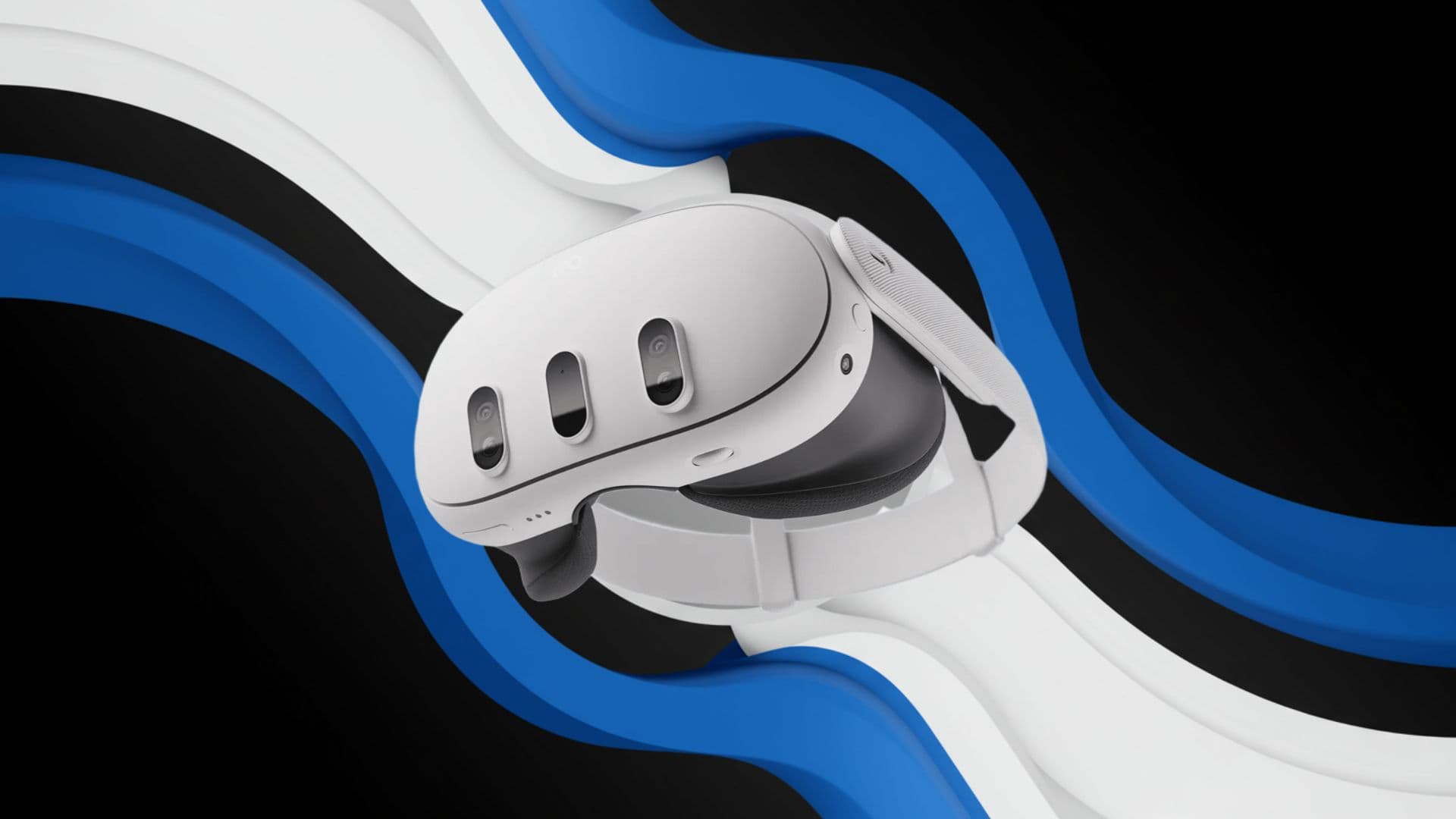
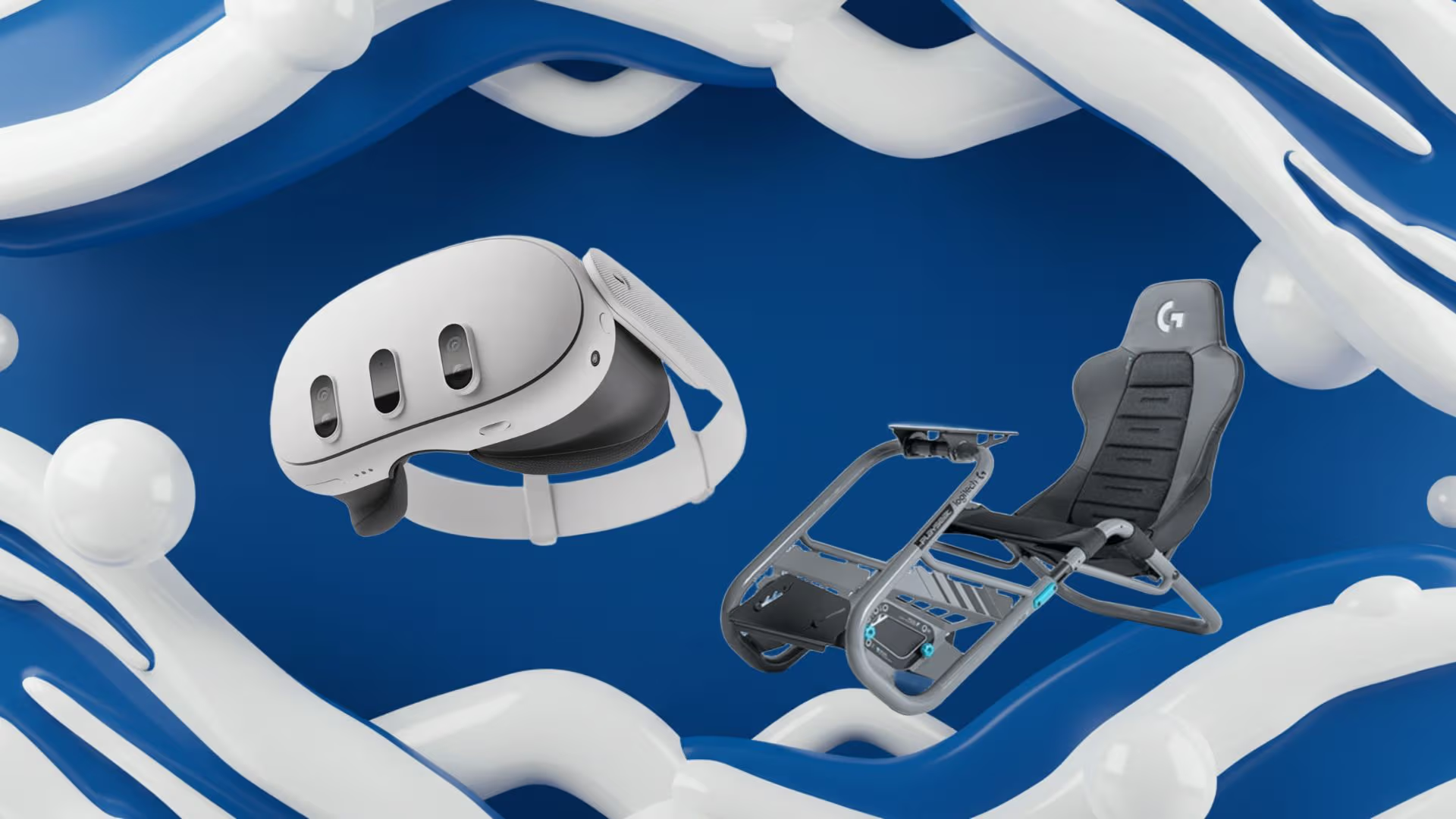
Sim racing has matured into a discipline that demands not only skill behind the wheel but also a meticulously calibrated virtual environment. The Meta Quest 3 stands as a compelling choice for enthusiasts seeking an untethered yet powerful VR experience. With its advanced passthrough, high-resolution LCD panels, and robust tracking capabilities, Quest 3 can transform your racing sim into an immersive cockpit that responds seamlessly to every steering input, pedal modulation, and head movement. To harness this potential, one must consider a holistic setup encompassing hardware compatibility, software configuration, performance optimization, input calibration, and ergonomics. This guide outlines a step-by-step approach to preparing your PC and rig, installing essential applications, fine‑tuning display settings, calibrating control peripherals, and enhancing comfort, so you can focus entirely on shaving milliseconds off your lap time rather than troubleshooting connectivity or frame rate issues. We will explore options such as USB 3.2 Gen 1 connectivity for Link cable, recommended GPU tiers for maintaining 90+ FPS, and ergonomic mounting methods that secure the headset without obstructing your steering rig’s range of motion. Additionally, we delve into the comparative advantages of using Virtual Desktop networks versus a wired Oculus Link, balancing pixel density and latency trade‑offs. This discourse integrates empirical performance metrics, practical calibration routines, and expert ergonomic guidelines reminiscent of lab‑tested protocols to deliver an authoritative yet accessible roadmap for both seasoned sim racers and newcomers transitioning from flat‑screen setups. Armed with these insights, you can confidently optimize your Quest 3 deployment to achieve flawless visual fidelity, instantaneous control feedback, and sustained comfort during extended racing sessions. Whether you pilot open‑wheel machines, GT cars, or classic touring cars, the procedural approach outlined here ensures consistency across titles like Assetto Corsa Competizione, iRacing, and Project CARS, reaffirming the Quest 3 as a viable and versatile tool in advanced racing simulations.
Preparing Your Hardware Environment
VR-Ready PC Specifications
At the core of any high‑fidelity sim racing experience lies the computing power to render complex 3D environments at high frame rates. A PC configured for Quest 3 should feature a modern multi‑core CPU—ideally a 6‑ or 8‑core processor from Intel’s i5/i7 series or AMD’s Ryzen 5/7 lineup—with clock speeds exceeding 3.5 GHz to handle physics calculations and background tasks. Coupled with at least 16 GB of DDR4 RAM clocked at 3000 MHz or higher, the memory subsystem will prevent bottlenecks during telemetry and game state updates. For graphics, an NVIDIA RTX 3060 or AMD Radeon RX 6700 XT (or better) is recommended to maintain consistent 90–120 FPS at the headset’s native resolution. Ensure your motherboard includes a USB 3.2 Gen 1 Type‑C or Type‑A port for wired Link, and connect your Quest 3 using a certified high‑bandwidth cable or the official Oculus Link cable to prevent dropped frames.
Quest 3 Mounting Solutions
Securing the Quest 3 to a stable mounting solution is critical for sim racing rigs where rapid head movements and force feedback are part of the realism. While the Quest 3 ships with an adjustable halo strap, upgrading to a custom mount or using an aftermarket head strap harness can improve distribution of weight across your skull and minimize wobble. Many enthusiasts leverage a universal VR stand or clamp‑mounted bracket that attaches directly to their sim rig’s roll cage or wheel stand. This approach ensures that the headset remains fixed relative to your cockpit, reducing motion artifacts and preserving immersion during aggressive cornering maneuvers.
For DIY fabrications, a simple L‑bracket fashioned from aluminum extrusion and padded with foam inserts can offer a low‑cost yet effective alternative. Affix the bracket at eye level, verifying that it doesn’t interfere with wheel rotation or your peripheral view of virtual dash instruments. If you prefer a market‑ready option, consider modular mounts that integrate with racing hubs like the Playseat, Next Level Racing, or Trak Racer systems. These mounts often include quick‑release mechanisms so you can swiftly detach the headset for non‑racing VR activities without reconfiguring your entire rig.
Sim Racing Rig Integration
Integrating the Quest 3 into your existing sim racing rig requires thoughtful alignment of physical and virtual coordinate spaces. Begin by positioning the headset origin—defined in the Oculus PC app—directly above the center of your steering wheel hub, ensuring that forward defines the same axis in both worlds. Measure the distance from your eyes to the wheel hub and calibrate the in‑game cockpit camera lens height accordingly. It is advisable to remove or reposition any real‑world obstacles such as monitors or cables that could collide with the headset during quick head turns. Additionally, consider modular mounts for your shifter, pedals, and handbrake that accommodate the added clearance required by the Quest 3’s dimensions while maintaining ergonomic reach to analog components.
Installing and Configuring Software
Oculus PC App Installation
To leverage the full capabilities of your Quest 3 for PC‑based sim racing, install the latest Oculus PC application on Windows 10 or 11. Download the installer from the official Oculus website, run the setup, and allow it to fetch firmware updates and drivers for your headset. After logging in with your Meta account credentials, navigate to the Devices tab and add your Quest 3 by following on‑screen prompts. Confirm that USB drivers install successfully by verifying ‘Quest 3’ appears under Devices in Device Manager with no warning icons. Finally, enable ‘Allow unknown sources’ and ‘Use USB for Oculus Link’ in the headset settings to permit non‑store apps like SteamVR to access the device.
SteamVR and Sim Racing Titles Integration
While the Oculus PC app provides native support for Oculus Store simulations, the broader sim racing ecosystem often resides within SteamVR. To integrate Quest 3 with SteamVR, launch the Oculus PC application, connect your headset via Oculus Link, and enable SteamVR within the Oculus menu. Once SteamVR launches, ensure your controller inputs and tracking are recognized by inspecting the SteamVR status window. At this juncture, you can open your sim racing title—such as Assetto Corsa, rFactor 2, or Project CARS 3—directly through Steam, benefiting from Steam’s overlay features and workshop mods.
For a seamless experience, configure each sim’s graphics and input settings within SteamVR. Access the ‘Manage VR Settings’ section to set your preferred supersampling, mirror options, and motion reprojection thresholds. In your sim’s control options, map your steering wheel, pedals, and handbrake under VR‑exclusive profiles, preserving force feedback parameters. If your game supports VR‑specific HUD modes, activate overlays that render speedometers and telemetry in fixed positions relative to your virtual cockpit. These calibrations ensure consistent performance and control fidelity, bridging the gap between traditional monitor‑based setups and immersive VR.
Virtual Desktop vs. Wired Link
Opting between Virtual Desktop’s wireless streaming and a wired Oculus Link directly influences latency and image quality. Virtual Desktop, paired with a high‑speed 5 GHz Wi‑Fi 6 router, grants freedom of movement untethered by cables, albeit at the cost of occasional compression artifacts and marginally higher latency. Ensure that your PC is connected via Ethernet and your router is tuned for minimal interference to achieve stable streams. Conversely, using a USB‑C or USB 3.2 cable for Oculus Link delivers an uncompressed video feed to the Quest 3, guaranteeing the lowest possible latency and maximum visual fidelity. While the wired approach restricts your range of motion, it is generally preferred for competitive sim racing, where every millisecond counts.
Optimizing Display and Performance Settings
Resolution and Refresh Rate Adjustments
Quest 3’s high‑resolution LCD panels support multiple refresh rates—commonly 72 Hz, 90 Hz, and 120 Hz—alongside customizable rendering resolutions. In the Oculus PC app’s Graphics settings, select 90 or 120 Hz as your refresh rate to match your sim’s performance envelope. Next, adjust the Render Resolution slider to calibrate pixel density; a higher value enhances sharpness but demands more GPU throughput. It is advisable to conduct benchmark runs at various settings to identify the equilibrium between visual clarity and frame rate stability. For titles that support dynamic resolution scaling, enable this feature to allow the game engine to downscale the render resolution in motion‑heavy scenes, preserving consistent refresh cycles.
Graphics Quality Balancing
Within each sim racing title’s graphics menu, balance parameters such as texture quality, shadow resolution, anti‑aliasing, and post‑processing effects. Setting these to ‘Medium’ or ‘High’ often yields optimal visuals without overwhelming GPU resources. Utilize the Oculus Debug Tool—which ships with the Oculus PC app—to override in‑game supersampling settings or apply fixed pixel density multipliers. Gradual adjustments to ambient occlusion and screen‑space reflections can reduce CPU overhead associated with scene complexity, while maintaining a believable environment. Periodically monitor GPU utilization statistics and frametime graphs using tools like MSI Afterburner or the built‑in SteamVR performance overlay to ensure that neither compute nor memory bandwidth becomes a limiting factor.
Frame Rate Stabilization Techniques
Consistent frame delivery is crucial to prevent judder and motion sickness during rapid head turns. Enable Adaptive Sync or FreeSync on your monitor and graphics card to allow the display to synchronize with GPU output, reducing stutters. In the Oculus Debug Tool, toggle ‘Motion Smoothing’ to permit asynchronous reprojection when the render pipeline dips below your target refresh rate. For wired setups, disable Windows Game Mode and foreground‑exclusive optimizations to allocate maximum resources to your sim. Using an overclocked GPU profile—with a mildly increased core clock and optimized fan curve—can also smooth out performance spikes. Finally, close background applications that may trigger context switches, such as web browsers, streaming apps, or system utilities.
Calibration and Fine-Tuning Controls
Steering Wheel and Pedal Calibration
Accurate input calibration begins with manufacturer‑provided drivers and configuration utilities. After installing the wheel’s Windows software—such as Logitech G Hub, Thrustmaster Control Panel, or Fanatec Command Center—use the calibration wizard to define pedal travel endpoints, steering range, and deadzones. Zero‑centre the device by ensuring the wheel and pedals return to their neutral positions with minimal drift. Save your calibration profiles at a global level and assign game‑specific overlays for titles that deviate from standard control schemas. Properly calibrated hardware is the foundation of reliable force feedback and proportional pedal response.
Within each sim’s options menu, import your hardware calibration profile and verify axes alignment by observing the in‑game telemetry display. Adjust steering lock and linearity settings to suit your preference—linear for precise control, non‑linear for more nuanced pedal modulation. Brake force curves can be softened or stiffened to mimic real‑world brake pedal stiffness. If available, enable auto‑centering for the wheel during rapid vehicle resets or when switching between cars with varying steering ratios. Regular recalibration—after firmware updates or hardware maintenance—prevents anomalies that can manifest as control hysteresis or erratic input readings.
VR Input Mapping in Game
Mapping VR controller inputs to sim‑specific functions enhances operational efficiency on the fly. In titles like Assetto Corsa Competizione or iRacing, access the input binding screen and assign Oculus Touch or Index controller buttons to critical in‑cockpit actions such as pit limiter, radio comms, or helmet adjustment. Leverage built‑in gesture recognition—if supported—to toggle HUD elements or switch camera views without removing your hands from the wheel. Consult the game’s VR mode documentation to account for variations in axis mapping conventions between traditional controllers and VR input devices. Proper mapping reduces reliance on keyboard shortcuts and improves focus during competitive sessions.
Haptic Feedback Configuration
Beyond force feedback from steering wheels, the Quest 3’s built‑in haptics can contribute subtle tactile cues during sim racing. In the Oculus app settings, increase the Audio Haptics slider to amplify low‑frequency vibrations synchronized with engine idle and tire slip. If your sim supports per‑channel rumble, assign haptic intensity maps to virtual surfaces such as rumble strips or road imperfections. Position a compatible haptic vest or seat transducer to capture these signals, bridging the gap between digital events and physical sensations. Always monitor haptic feedback levels to prevent overstimulation that could lead to distraction or discomfort during lengthy endurance races.
Enhancing Immersion and Comfort
Headset Comfort Adjustments
Long stints behind the wheel can be taxing on the neck and facial pressure points if your headset fit is suboptimal. Begin by adjusting the top and side straps to balance the Quest 3’s weight evenly across your head, avoiding pressure hotspots around the brow ridge. Consider aftermarket facial interface kits—such as foam replacements or silicone masks—that wick moisture and reduce friction. Adding a counterweight at the rear strap can offset the headset’s front‑heavy tendency, preventing forward tilt during intense steering inputs. Take regular breaks every 60–90 minutes to relieve ocular strain and recalibrate the fit before returning to the virtual cockpit.
Audio Setup for Sim Racing
Audio fidelity plays a pivotal role in sim racing immersion, providing cues like tire squeal and engine RPM roll‑offs. While the Quest 3’s integrated spatial audio drivers are serviceable, dedicated over‑ear headphones often deliver superior sound staging and bass response. For wired connections, use a USB DAC or 3.5 mm audio jack with a quality splitter to maintain low latency and consistent volume levels. If you prefer wireless freedom, opt for low‑latency codecs such as aptX LL on compatible headsets. In the sim’s audio settings, fine‑tune environmental volumes, engine sound levels, and ambient cue sliders to balance immersion with the need to hear essential tire and mechanical feedback.
Motion and Ergonomics Best Practices
Adopting proper posture and motion awareness can enhance performance and reduce fatigue during marathon racing sessions. Position your chair or racing seat so that your hips are level with or slightly above your knees, promoting spinal alignment. Angle your foot pedals at a comfortable tilt—typically between 10 and 15 degrees—to enable natural ankle dorsiflexion. Keep your hands at the traditional 9 and 3 o’clock positions on the wheel, with light arm bend to absorb road‑induced forces via your shoulders rather than neck. Incorporate desk stretches and wrist rotations during scheduled breaks to maintain circulation and prevent repetitive strain injuries over prolonged periods.